
Contracts for Event Directors
Director contracts now include a Venue field. When the director signs, they’re added to the event and assigned to the venue chosen on the contract, so no one has to reassign them afterward.
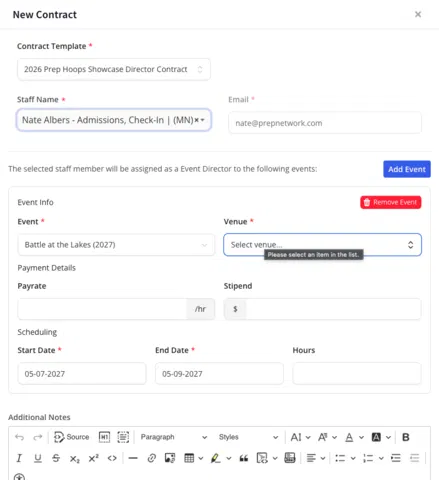
Sending a Contract with a Venue
- Open the EA and navigate to settings. Hit Contracts.
- Select the Contract Template, Staff Name, and Email.
- In the event row, select an Event.
- Select a Venue. The dropdown lists the venues on that event. Venue is required.
- Fill in Payrate, Stipend, Start Date, End Date, and Hours, then send the contract.
- When the director signs, they’re automatically added to the event and assigned to the selected venue.
Venue Field Behavior
- The Venue field sits right after Event and before Payrate.
- Until an event is selected, the field is disabled.
- If the event has one venue, it’s selected automatically and shown as read-only.
- If the event has more than one venue, choose one from the list.
- If the event has no venues, the field doesn’t appear.
Example
Jenna sends a contract for Summer Showcase, which has three venues: North Campus, South Campus, and Downtown. After she selects the event, the Venue dropdown shows all three. She selects North Campus. When the director signs, they’re assigned to North Campus within Summer Showcase.
Where to put it
Events > Events App > Operations, right after the Staffing page. If you’d rather keep it with other director content, Event Operations - Regional Ops > Director Network, Hiring & Performance also fits, since Regional Ops is the external impact.